Context Menu
The context menu can be opened by right-clicking a node (or the background) either in the tree view or in 3D view. While the content of the context menu is configurable, the following menu items are provided by default.
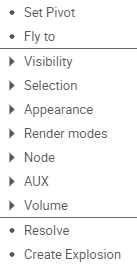
Set pivot
Sets the center of rotation to the center of the selected nodes bounding volume.
Fly to
The camera of the 3D view moves to the selected node and fits it into the viewport.
Visibility
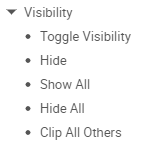
Toggle Visibility
Enables or disables the visibility of all nodes.
Hide
Disables the selected node.
Show all
Enables all nodes.
Hide all
Disables all nodes.
Clip All Others Delete
Creates six clipping planes around the bounding box of the selected node. This will clip all other geometry outside of such volume.
Selection
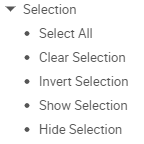
Select All
Selects all nodes.
Clear Selection
Removes all nodes from the selection.
Invert Selection
Inverts the current selection. (Selects all deselected nodes and deselects selected ones.)
Show Selection
Enables all selected nodes.
Hide Selection
Disables all selected nodes.
Appearance
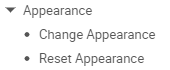
Change Appearance
Opens a dialog allowing to change the color and transparency of the node (and all of it’s children).
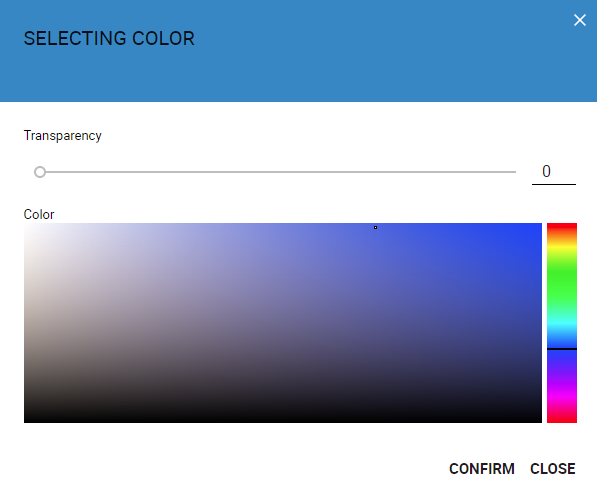
Reset Appearance
Resets the color and transparency to their original states.
Render modes
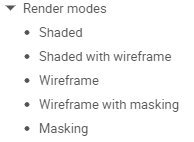
Changes the rendering mode for the node.
See Node Properties for more information.
Node
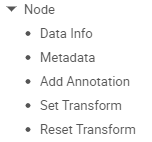
Data Info and Meta Data
Displays various information about the node, see Data Info for more details.
Add Annotation
Creates an annotation for the selected node. Default annotation content is the label text of the node. Click on the annotation to change it’s content.
Set Transformation
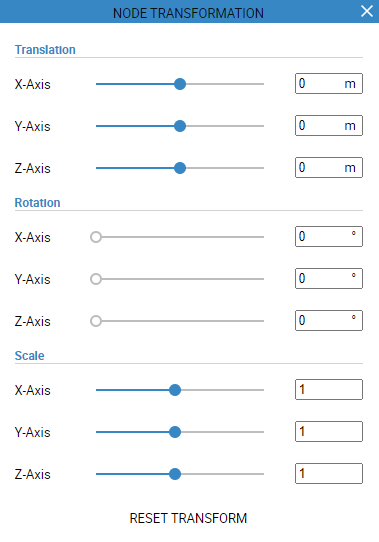
Opens a dialog, which allows you to change the translation, rotation and scale of the selected node.
Reset Transformation
Resets the transformation of the selected node to the original state.
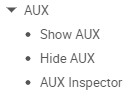
Aux
Volume
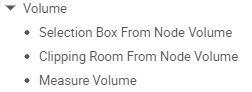
Selection Box From Node Volume
Creates a selection box from the volume of the selected node.
Clipping Room From Node Volume
Creates a clipping room from the volume of the selected node.
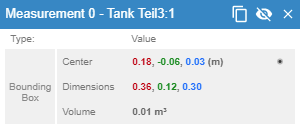
Measure Volume
Measures the volume of the selected node and displays it in a measurement dialog.
Resolve
Expands the tree view to the selected node. (This can also be achieved by clicking the status icon in front of a node in the tree structure.)
Create Explosion
Creates a simple explosion for the subtree under the selected node.